Google Sheets Guide
No coding required. Free. Takes about 10 minutes.
Build a live stock tracking sheet that pulls real-time data automatically — the same data powering this site, in your own spreadsheet.
GOAL What You'll Build
A personal live stock tracking sheet that:
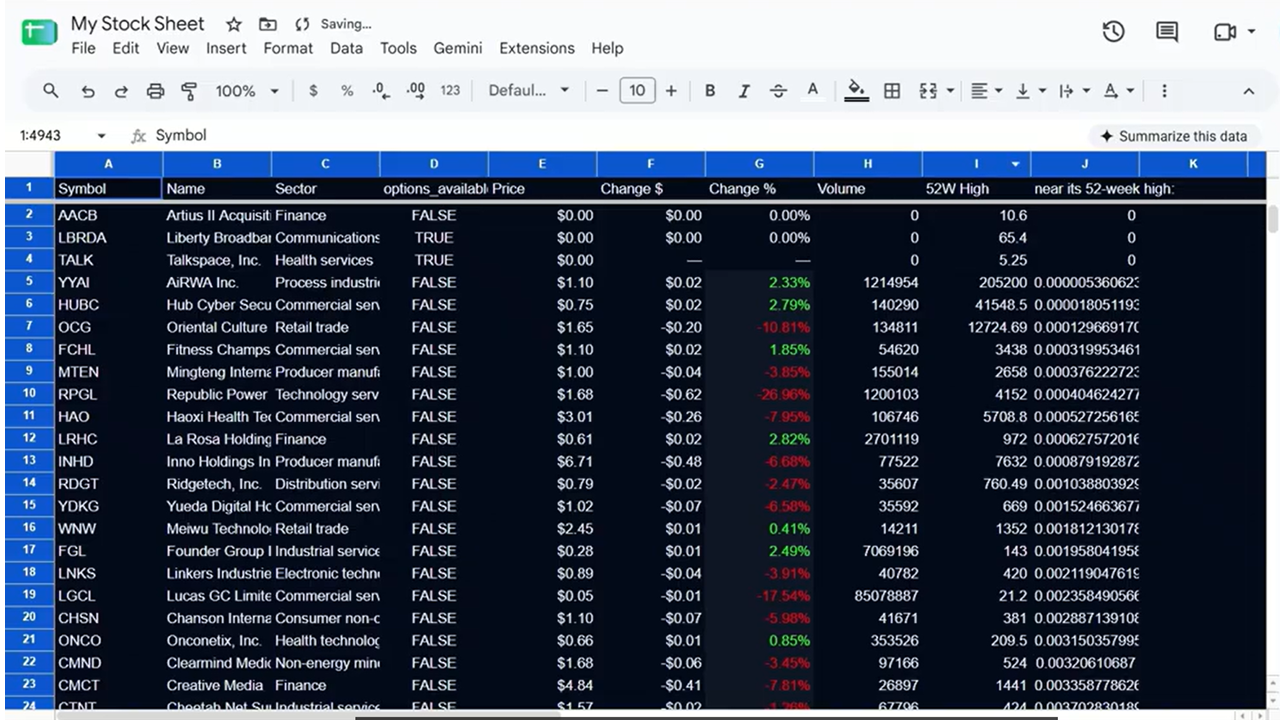
- Pulls real-time price data automatically via GOOGLEFINANCE()
- Shows price, change %, change $, volume, 52-week high
- Highlights gainers green and losers red automatically
- Filters to only stocks with options available
- Is yours to customize however you want — no API key, no cost
01 Get the Data
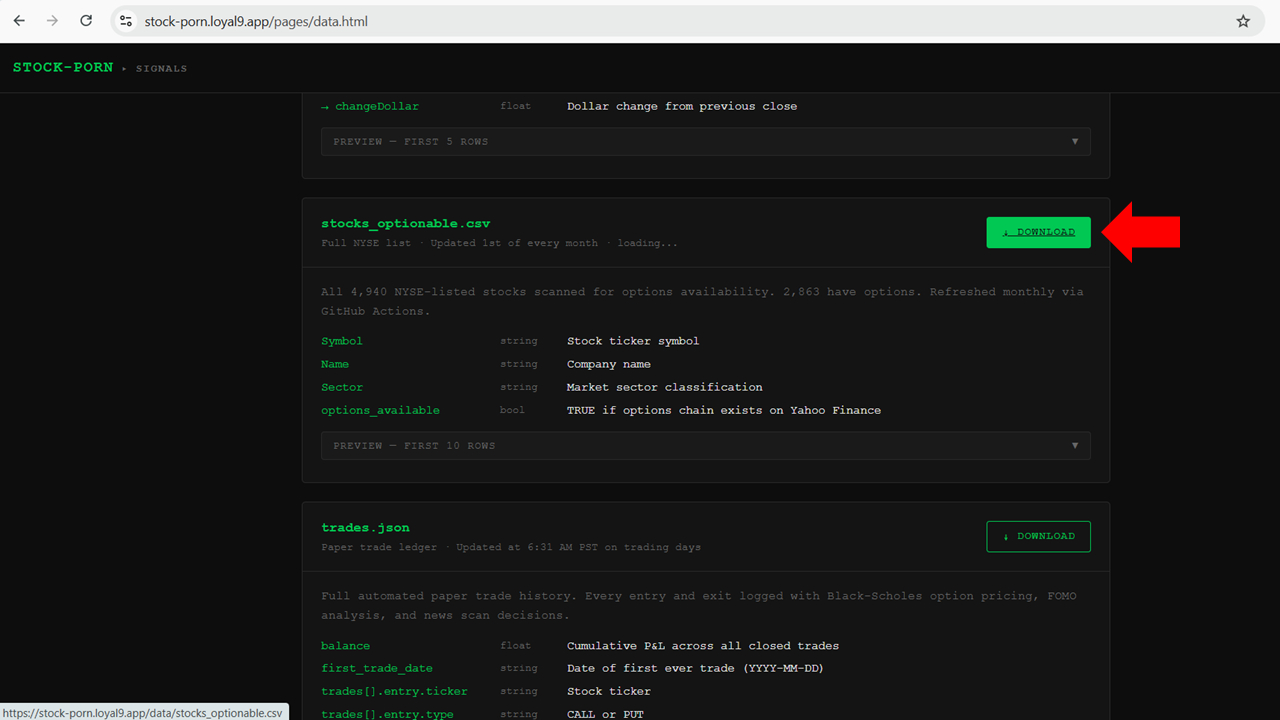
- Go to stock-porn.loyal9.app/pages/data.html
- Download
stocks_optionable.csv - Save it to your computer
This CSV contains every NYSE listed stock with options available — ticker symbol, company name, and sector. Updated monthly.
02 Open Google Sheets
- Go to sheets.google.com
- Click + to create a new blank spreadsheet
- Name it something like
My Stock Sheet
03 Import the CSV
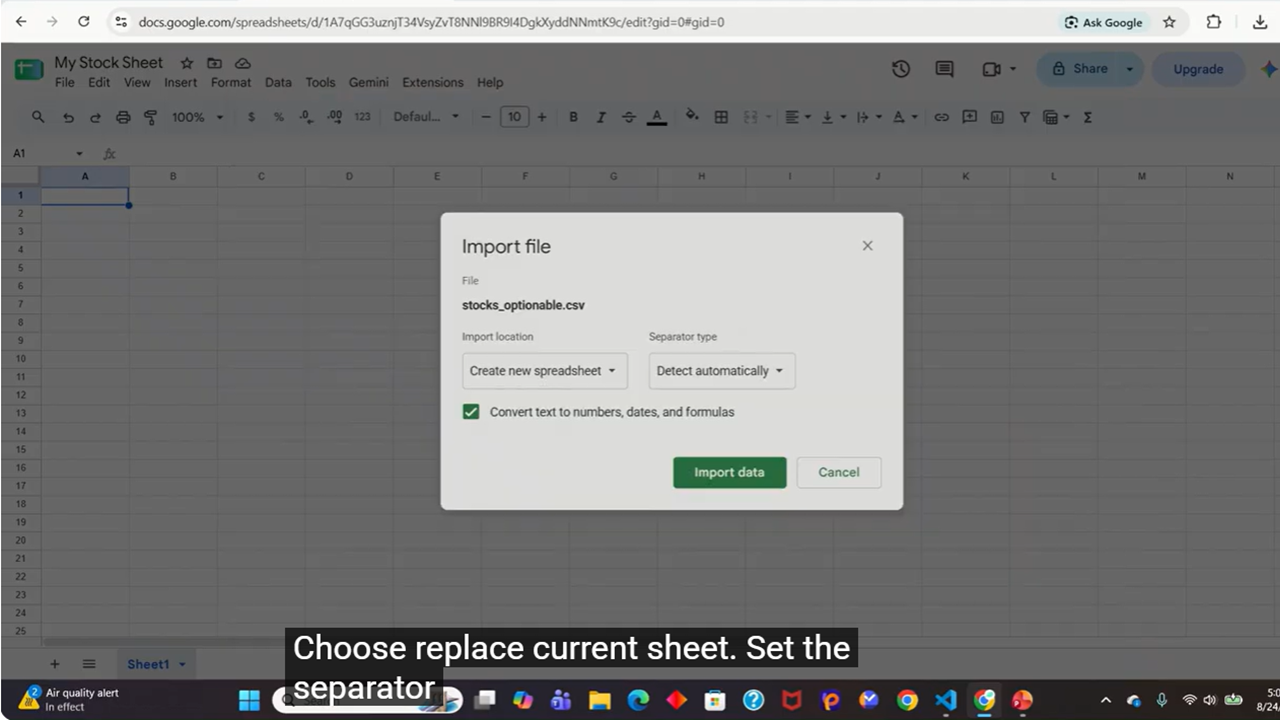
- Click File → Import
- Click Upload → select the
stocks_optionable.csvyou downloaded - Import location: Replace current sheet
- Separator type: Comma
- Click Import data
You should now see columns:
A: Symbol | B: Name | C: Sector | D: options_available
04 Add Live Price Columns
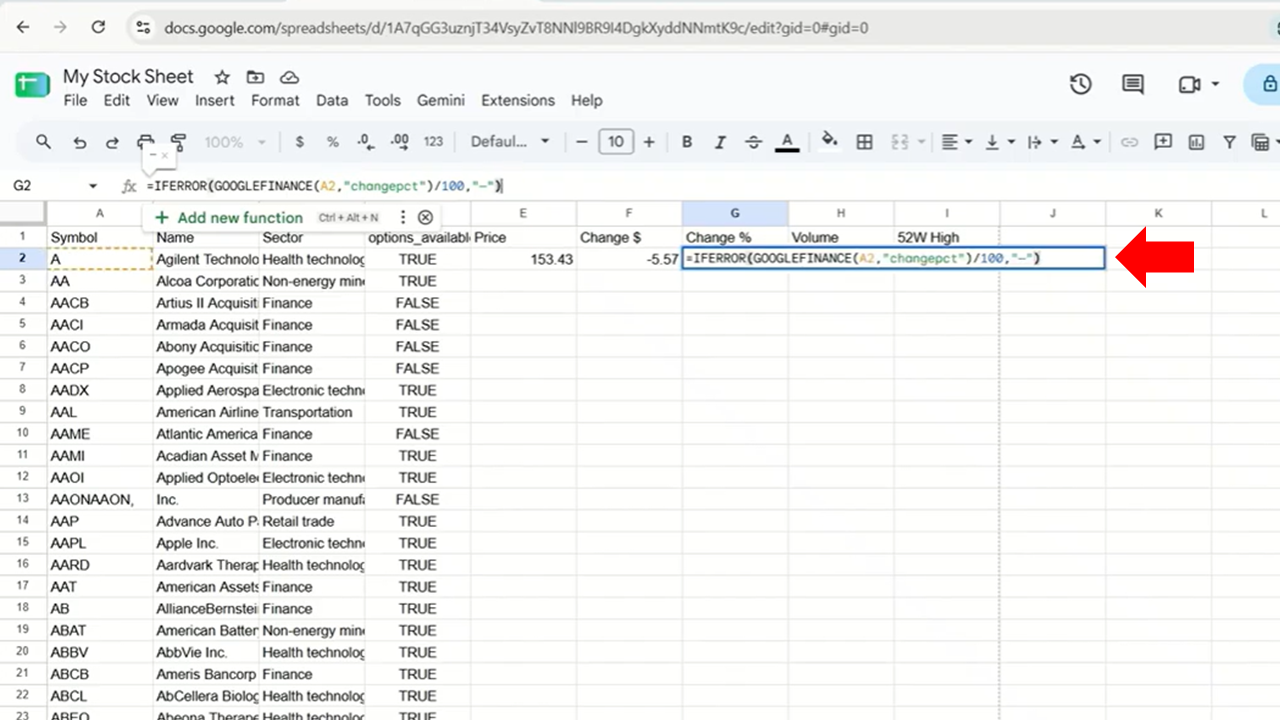
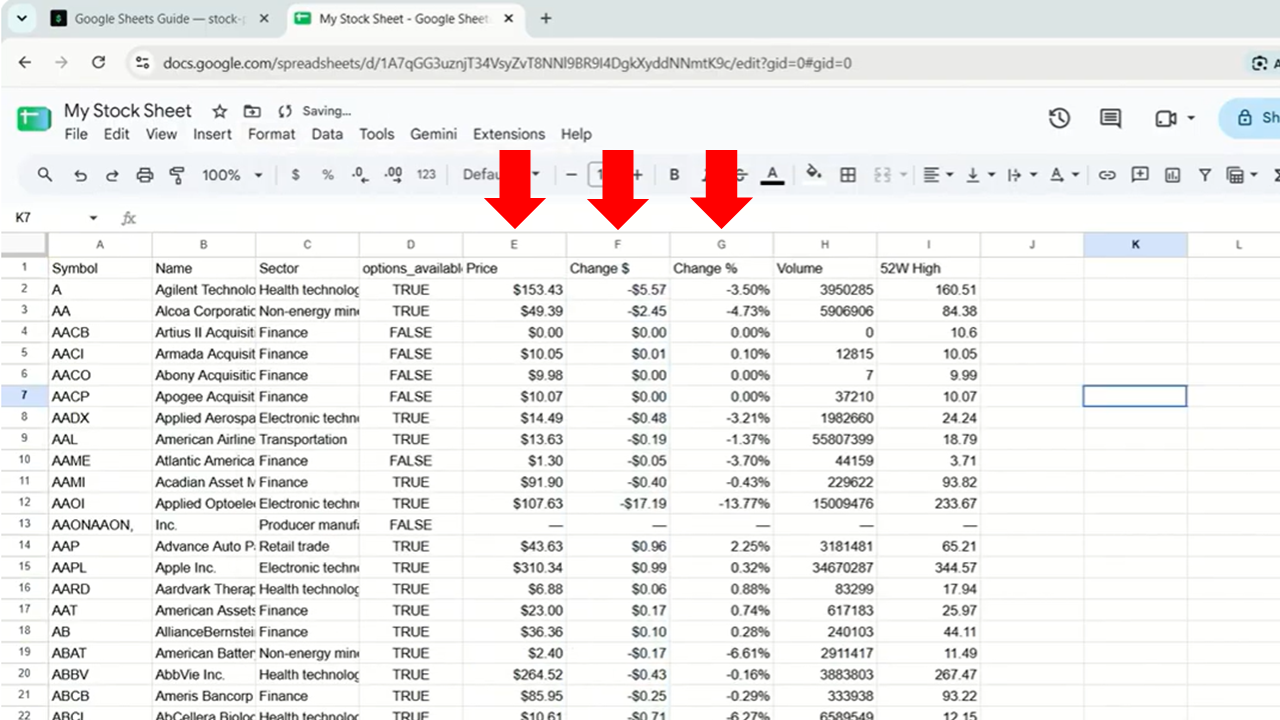
Click on cell E1 and add these headers:
| Cell | Header |
|---|---|
| E1 | Price |
| F1 | Change $ |
| G1 | Change % |
| H1 | Volume |
| I1 | 52W High |
Now enter these formulas starting in row 2:
=IFERROR(GOOGLEFINANCE(A2,"price"),"—")         ← E2: current price
=IFERROR(GOOGLEFINANCE(A2,"change"),"—")         ← F2: dollar change
=IFERROR(GOOGLEFINANCE(A2,"changepct")/100,"—")  ← G2: percent change
=IFERROR(GOOGLEFINANCE(A2,"volume"),"—")         ← H2: today's volume
=IFERROR(GOOGLEFINANCE(A2,"high52"),"—")         ← I2: 52-week high
05 Apply Formulas to All Rows
- Select cells
E2:I2 - Copy them (
Ctrl+C) - Select from
E3all the way down to the last row of your data - Paste (
Ctrl+V)
All rows will now pull live data automatically.
06 Format the Sheet
Format Change % as percentage:
- Select column G
- Click Format → Number → Percent
Format Price and Change $ as currency:
- Select columns E and F
- Click Format → Number → Currency
Freeze the header row:
- Click View → Freeze → 1 row
07 Add Color
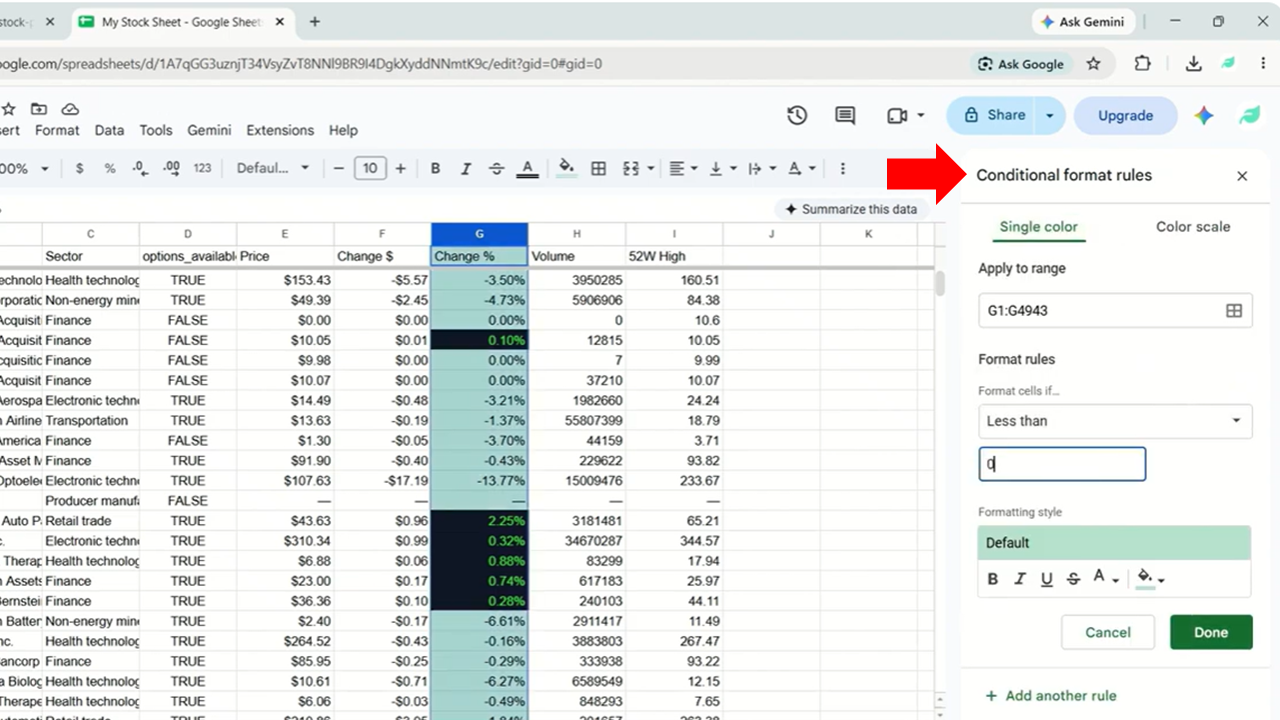
Make gainers green and losers red automatically:
- Select column G (Change %)
- Click Format → Conditional formatting
- Add rule: Greater than
0→ fill color green - Add rule: Less than
0→ fill color red
Repeat for column F (Change $) if you want both colored.
08 Filter to Your Watchlist (Optional)
To track only specific stocks:
- Click Data → Create a filter
- Click the filter arrow on column A (Symbol)
- Search for and select only the tickers you want to watch
Or create a second sheet tab called Watchlist, manually enter your tickers in column A, and use the same GOOGLEFINANCE formulas in columns B onward.
REF GOOGLEFINANCE Formula Reference
| Formula | Returns |
|---|---|
| =GOOGLEFINANCE(A2,"price") | Current price |
| =GOOGLEFINANCE(A2,"change") | Dollar change today |
| =GOOGLEFINANCE(A2,"changepct") | Percent change today |
| =GOOGLEFINANCE(A2,"volume") | Today's volume |
| =GOOGLEFINANCE(A2,"high52") | 52-week high |
| =GOOGLEFINANCE(A2,"low52") | 52-week low |
| =GOOGLEFINANCE(A2,"pe") | Price to earnings ratio |
| =GOOGLEFINANCE(A2,"marketcap") | Market cap |
| =GOOGLEFINANCE(A2,"shares") | Shares outstanding |
PRO Pro Tips
Check if a stock is near its 52-week high:
=IFERROR(E2/GOOGLEFINANCE(A2,"high52"),"—")
A value close to 1.0 = near 52-week high. Close to 0.5 = middle of its range.
Pull 30 days of price history:
=GOOGLEFINANCE(A2,"close",TODAY()-30,TODAY())
Paste into a separate area and chart it. Poor man's TOS.
Sort by biggest movers:
- Click Data → Sort range
- Sort by column G (Change %) descending
- Biggest gainers float to the top
stocks_optionable.csv on GitHub
refreshes on the 1st of every month automatically. Re-download it monthly if you want
the most current list. GOOGLEFINANCE prices update on their own — no action needed.
Not a financial advisor. Built this to earn beer money.
🍺 Buy the dev a beer
·
Legal